Navigating the MakeFlow App
Learn how to navigate MakeFlow's interface, find features, and use the sidebar menu to manage your studio efficiently.
Navigating the MakeFlow App
MakeFlow is organized into clear sections that help you manage every aspect of your studio. This guide will show you how to navigate the app and find what you need quickly.
The Sidebar
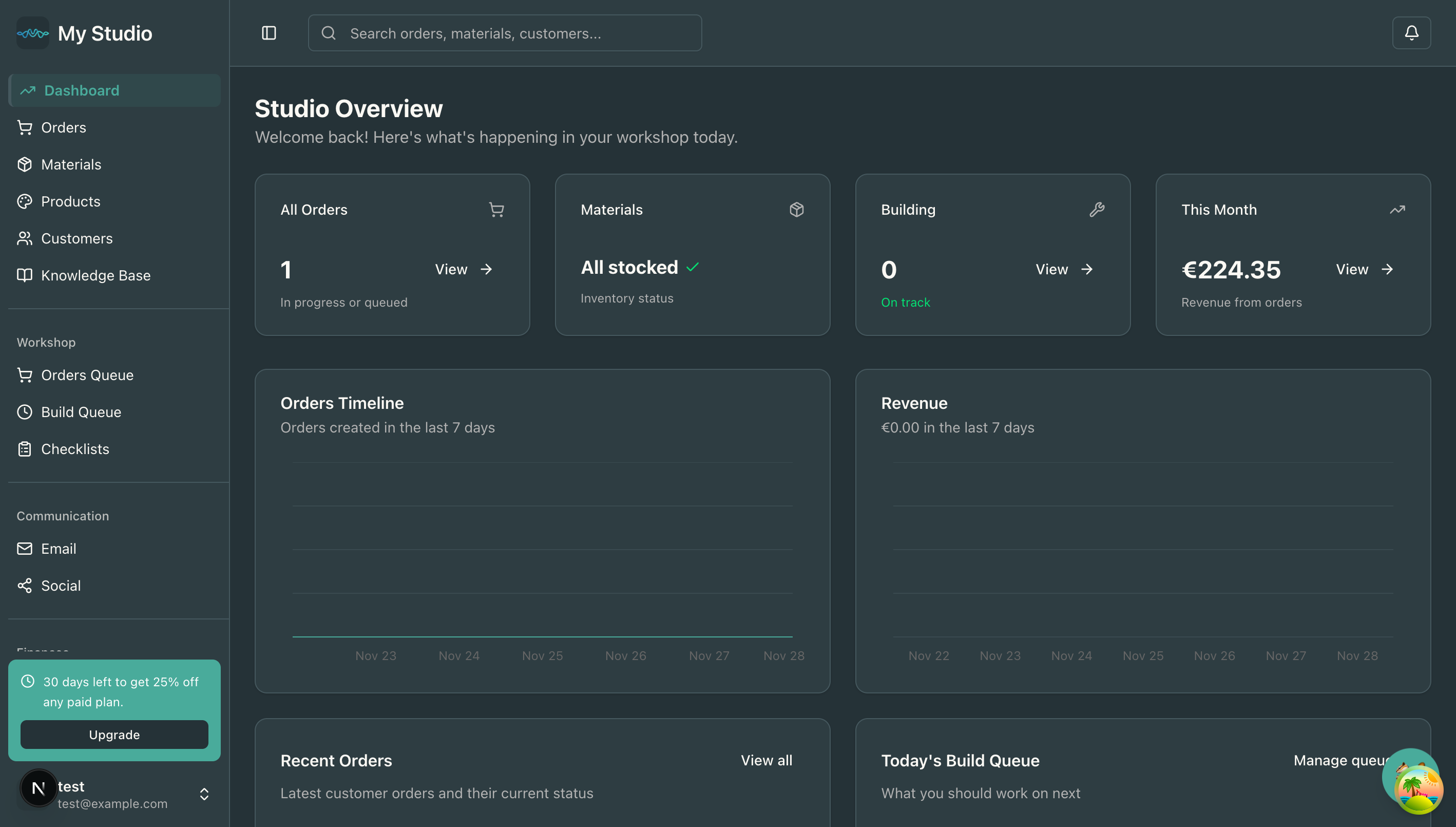
The sidebar is your primary navigation tool. It’s always visible on the left side of the screen and contains all major sections of the app.
Collapsing the Sidebar
The sidebar can be collapsed to icon-only mode to give you more screen space:
- Desktop: Click the toggle button at the top of the sidebar
- Mobile: The sidebar automatically collapses to a menu icon
When collapsed, hover over icons to see tooltips with the section names.
Main Sections
Dashboard
What it is: Your studio overview and daily snapshot Icon: Trending up chart What you’ll find:
- Order statistics
- Material status
- Build queue preview
- Revenue summary
- Quick actions
When to use it: Start your day here to see what needs attention.
Orders
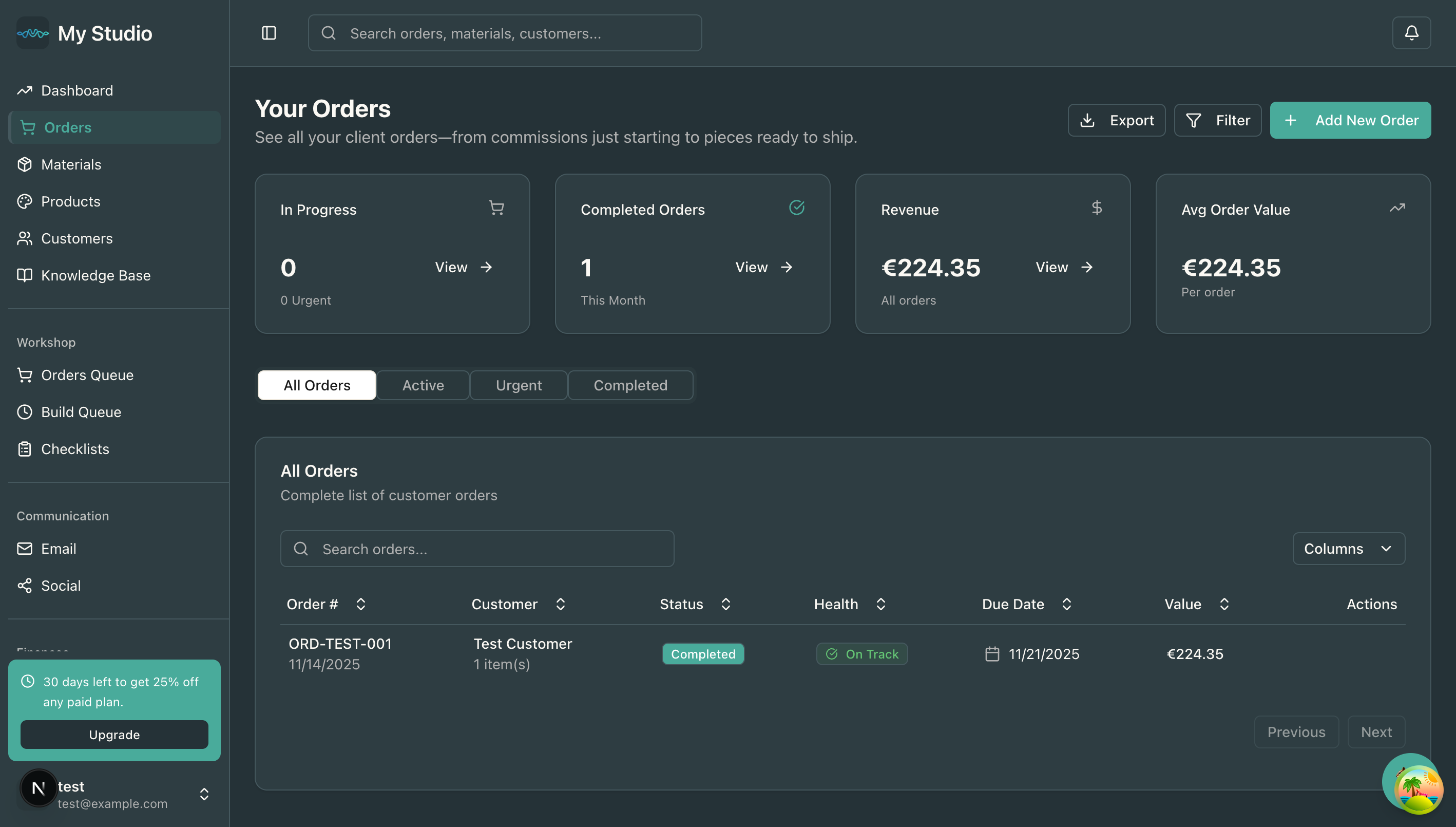
What it is: Customer order management Icon: Shopping cart What you’ll find:
- All customer orders
- Order details and status
- Due dates and health tracking
- Order items and pricing
When to use it: Creating new orders, tracking progress, updating order status.
Materials
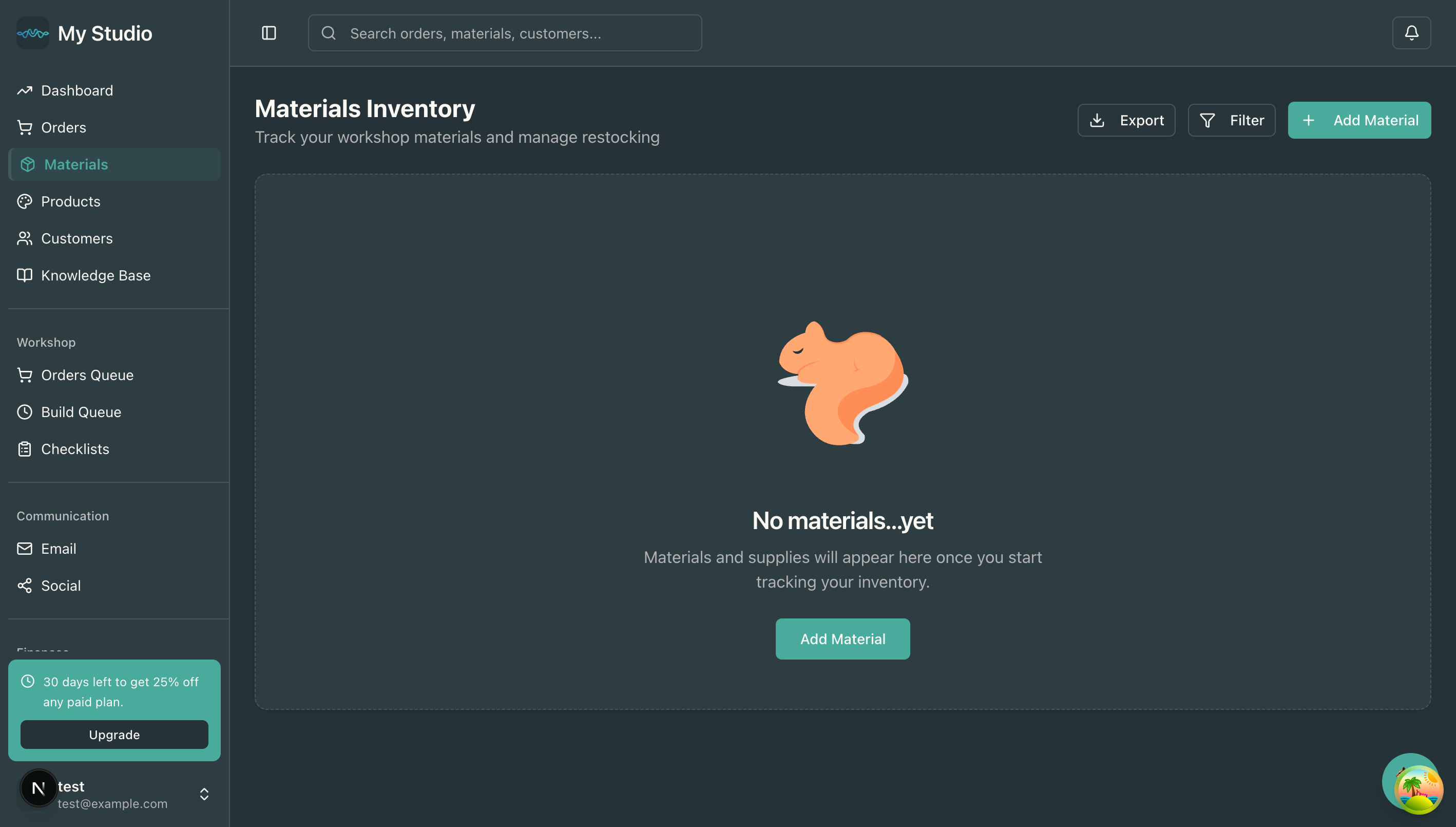
What it is: Inventory and supplies tracking Icon: Package What you’ll find:
- All materials and supplies
- Stock levels
- Low inventory alerts
- Material costs and suppliers
When to use it: Checking stock before starting orders, restocking materials, updating inventory.
Products
What it is: Product catalog and pricing Icon: Palette What you’ll find:
- Product library
- Bill of materials
- Build time estimates
- Cost and pricing calculations
When to use it: Creating new products, updating recipes, calculating costs.
Customers
What it is: Customer contact management Icon: Users What you’ll find:
- Customer directory
- Contact information
- Order history per customer
- Customer preferences
When to use it: Adding new customers, updating contact details, viewing customer order history.
Knowledge Base
What it is: Documentation and resources Icon: Book What you’ll find:
- Help articles
- Guides and tutorials
- Best practices
When to use it: Learning how to use features, finding answers to questions.
Workshop Section
The Workshop section contains production-focused tools:
Orders Queue
What it is: Order workflow and stage tracking Icon: Shopping cart What you’ll find:
- Orders organized by workflow stage
- Drag-and-drop stage management
- Order health indicators
- Material availability checks
When to use it: Managing production workflow, moving orders through stages.
Build Queue
What it is: Product-level production queue Icon: Clock What you’ll find:
- Individual products to build
- Build order priority
- Estimated completion times
- Material reservations
When to use it: Planning daily production, prioritizing what to build next.
Checklists
What it is: Quality control and task tracking Icon: Clipboard What you’ll find:
- Quality check templates
- Task lists for complex orders
- Completion tracking
When to use it: Ensuring consistent quality, tracking complex build steps.
Communication Section
Tools for customer communication:
What it is: Email template management Icon: Mail What you’ll find:
- Email templates
- Order confirmations
- Status update emails
- Custom messages
When to use it: Sending professional customer communications.
Social
What it is: Social media content planning Icon: Share What you’ll find:
- Post scheduling
- Content calendar
- Platform integrations
When to use it: Planning and scheduling social media posts.
Finances Section
Financial tracking and reporting:
Overview
What it is: Financial dashboard Icon: Bar chart What you’ll find:
- Revenue summary
- Profit margins
- Financial trends
- Key metrics
When to use it: Reviewing financial health, tracking revenue.
Expenses
What it is: Expense tracking and categorization Icon: Dollar sign What you’ll find:
- All business expenses
- Receipt scanning
- Category breakdown
- Supplier spending
When to use it: Recording expenses, scanning receipts, tracking spending.
Analytics Section
Overview
What it is: Business analytics and insights Icon: Trending up What you’ll find:
- Sales trends
- Product performance
- Customer insights
- Production metrics
When to use it: Making data-driven decisions, understanding business trends.
Settings
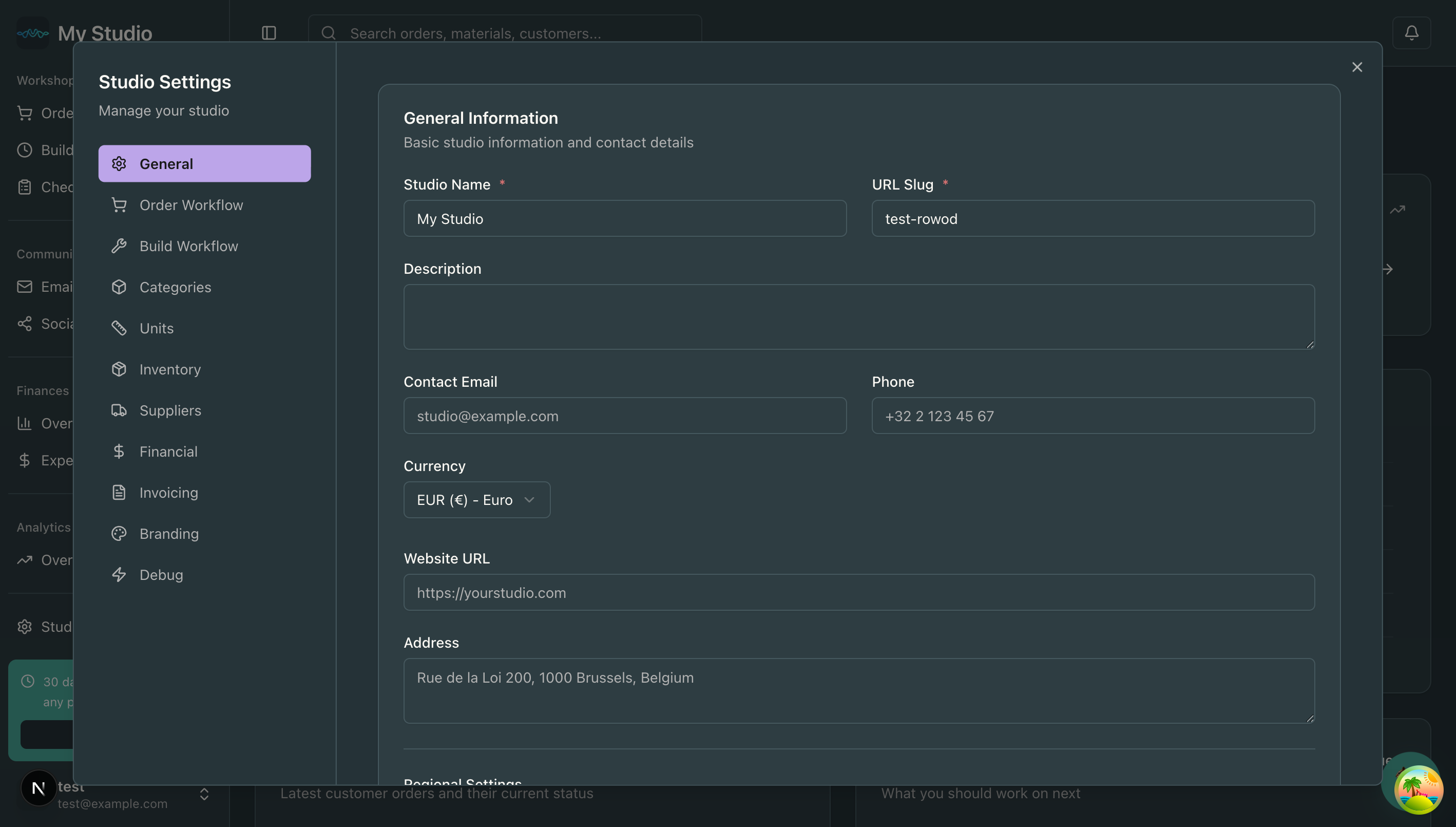
Location: Bottom of sidebar Icon: Gear What it opens: Studio Settings dialog
What you can configure:
- Studio name and branding
- Currency and units
- Work hours
- Inventory thresholds
- User preferences
When to use it: Initial setup, changing studio configuration.
The Header
The header contains global tools available from any page:
Search
What it is: Global search across all data Icon: Magnifying glass Placeholder: “Search orders, materials, customers…”
What you can search:
- Orders by number or customer name
- Materials by name
- Customers by name or email
- Products by name
Keyboard shortcut: Click the search box or press Cmd+K (Mac) / Ctrl+K (Windows)
Notifications
What it is: Activity and alerts center Icon: Bell What you’ll see:
- Low inventory alerts
- Overdue orders
- System notifications
- Important updates
When to check: The bell icon shows a badge when you have unread notifications.
User Menu
Location: Bottom of sidebar Shows: Your initials and email
Options:
- View profile
- Account settings
- Sign out
Navigation Tips
Using Keyboard Shortcuts
- Cmd/Ctrl + K: Open global search
- Alt + T: Open notifications (if supported by browser)
Finding Features Quickly
- Use search first: The global search is the fastest way to find specific orders, customers, or materials
- Start at Dashboard: The dashboard provides links to common actions
- Collapse sidebar: Get more screen space for detail views
- Bookmark frequently used pages: Use your browser’s bookmarks for sections you visit daily
Understanding Active States
- Highlighted menu item: Shows which section you’re currently viewing
- Green checkmarks: Indicate healthy/good status (materials stocked, orders on track)
- Warning indicators: Orange/red colors indicate items needing attention
Mobile Navigation
On mobile devices:
- Sidebar collapses to a hamburger menu
- Tap the menu icon to expand navigation
- Swipe to close the sidebar
- Search is accessible from the top bar
Common Navigation Paths
Starting Your Day
- Dashboard → See what needs attention
- Build Queue → Check today’s production
- Orders → Review due dates
Creating an Order
- Orders → New Order button
- Add customer (or Customers → Create first)
- Add products (or Products → Create first)
- Save and optionally add to Build Queue
Restocking Materials
- Expenses → Upload receipt
- AI extracts material details
- Update Materials inventory
- Return to Dashboard to see updated status
Checking Financial Health
- Finances → Overview for summary
- Finances → Expenses for detailed spending
- Analytics → Overview for trends
Troubleshooting
Q: I can’t find a feature I need A: Use the global search (Cmd/Ctrl + K) to search all sections, or check the Knowledge Base.
Q: The sidebar is too narrow/wide A: The sidebar can be collapsed/expanded but not resized. Toggle it using the button at the top.
Q: A menu item isn’t working A: Refresh the page. If the issue persists, sign out and sign back in.
Q: I want to return to the previous page A: Use your browser’s back button or click the active sidebar item to return to the section’s main view.
Next Steps
Now that you know how to navigate MakeFlow:
Need help? Contact support@makeflow.xyz
Related Articles
Still need help?
Can't find what you're looking for? Our support team is here to help.
Contact support